
This personal reference guide outlines how to set up, organize, publish, and deploy a web project. It covers starting locally in Claude Desktop or with a Vercel template, preparing project files, using GitHub Desktop for version control, and connecting the project to Vercel for automatic deployment.
Initiating Project from my Desktop
Step 1: Create Project Folder in Development Folder:
Setting up a "Dev" folder is all about establishing a predictable structure that scales as you work on multiple projects.
1. Setting up Dev Folder in your Home directory (One Time only)
2. Create your Project folder.
Step 2: Open the Code Tab in Claude Desktop
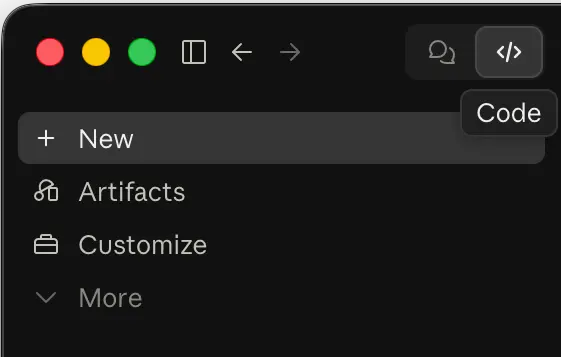
Once you're signed in, look for the Code tab in the upper left of the Claude Desktop window. Click it to switch into Code mode .
That's the whole switch. The Code tab is essentially Claude Code with a folder picker and buttons instead of terminal commands
Step 3: Select a Folder
When you start a new project in the Code tab, Claude will ask where to keep it. You can either:
- Point it to an existing folder on your Mac
No Project Selected:

Switching from other projects:

- Let it create a new folder for the project (Best practice is to host your project folders in your Dev Home Directory Folder)
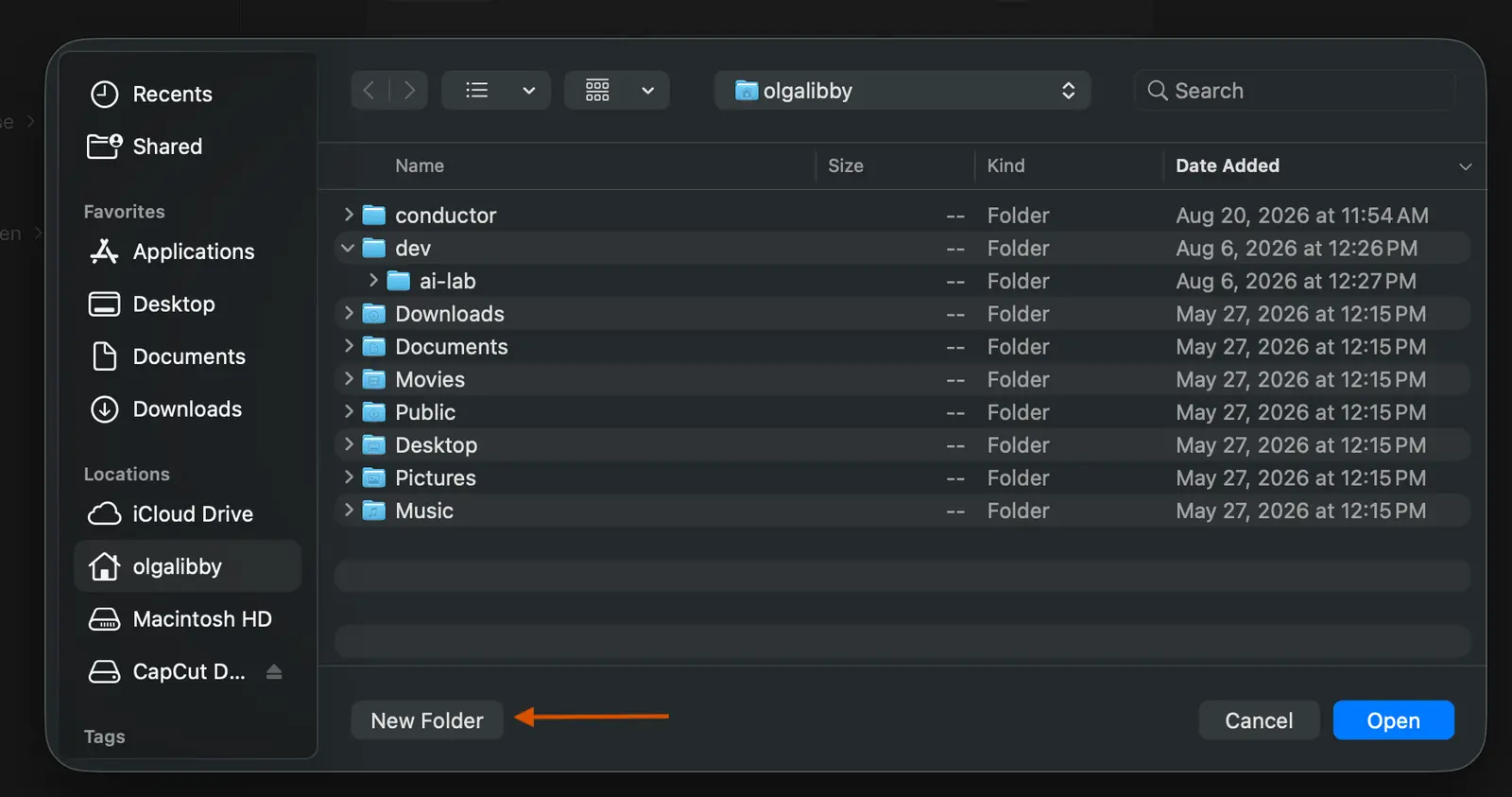
The Code tab operates on whatever folder you attach to the session. Claude can then read, create, and modify files inside that folder using its file tools
Step 4: Vibe-coding
Once your folder is attached, you just type what you want in the chat — no terminal commands required. Claude will plan the work, write code, and make changes directly to files in that folder, asking for your approval before executing operations.
Recommended Tech Stack:
- Next.js or React for the framework
- ShadCN for component library
Single Prompt Inititation:
Check that node, gh, and vercel are installed and that I'm logged in to both gh and vercel.
Tell me what's missing and how to fix it. Don't install anything yet.Scaffold a Next.js app called ==Project Name== (PROJECT_NAME) here, push to a private GitHub repo,
connect it to Vercel with continuous deployment, then install and run it:
1. npx create-next-app@latest PROJECT_NAME --typescript --tailwind --eslint \
--app --src-dir --import-alias "@/*" --turbopack --use-npm --yes
2. Replace the default Next.js starter page in src/app/page.tsx: delete the boilerplate
markup and any imports it leaves unused, and leave a blank page with the text
"This is my first app" centred on the screen
3. gh repo create PROJECT_NAME --private --source=. --remote=origin --push
4. vercel link --yes --project PROJECT_NAME
5. vercel git connect --yes
6. vercel deploy --prod --yes
7. npm install
8. npm run devTo preview your work in progress:
- Open Terminal
- Navigate to your project folder
Essential Navigation Shortcuts
Best Practices:
- Use Plan Mode for complex tasks - Coding agent will create an action plan that you can read through and understand / approve before it starts building.
- If you are using plugins, make sure to turn off plugins that are not relevant / essential for the task.
- Aim to start new tasks often for separate features.
Step 5: Prepare Your Project Folder
Before you begin, it's a good idea to make sure your project folder doesn't contain any unnecessary or sensitive files. If your project has a .gitignore file (Claude Code often creates one), make sure it includes things like node_modules and .env files so you don't accidentally upload dependencies or secrets.
1. Understand the Goal: The .gitignore File
When you publish code, you don't want to upload everything. A .gitignore file is a simple text file that tells Git which files or folders to ignore . This is crucial for two reasons:
- Security: It prevents sensitive information like API keys or passwords (often stored in
.envfiles) from being uploaded to a public or even private repository . - Efficiency: It stops huge, unnecessary folders—like
node_modules(which can contain thousands of small files)—from being uploaded. These can be rebuilt by anyone who downloads your project.
2. Locate or Create Your .gitignore File
- Check First: Claude Code often creates a
.gitignorefile automatically when it builds a project . Look inside your "Project 1" folder. If you see a file named exactly.gitignore(usually hidden by default in Mac Finder or Windows Explorer), you can open it with a text editor (like Notepad, TextEdit, or VS Code) and review it. - If It's Missing: If you don't see one, you can create it manually. Open a simple text editor, create a new file, and save it directly inside your "Project 1" folder with the name
.gitignore(make sure there is a dot at the beginning and no.txtextension at the end).
3. Check the Contents (What to Look For)
Open that .gitignore file. You want to verify that it contains some essential lines. The exact contents depend on what language Claude used, but here are the most common and important ones to ensure are present:
- Secrets & Environment: Look for lines like
.envor.env.local. This ensures any files containing your private configuration data are ignored . - Dependencies: Look for
node_modules/orvendor/. This keeps the massive dependency folder out of your repository . - Claude Code Specifics: Since you used Claude Code, it might be wise to ensure any local Claude settings are ignored. Some developers add
.claude/to their.gitignoreto prevent local configuration files from being shared . - Build Outputs: Look for
dist/,build/, orout/. These are generated folders that Vercel will recreate during deployment .
4. A Quick Check for Common "Oops" Items
Before moving on to GitHub Desktop, take a quick look for any files that should be ignored but might not be. Common mistakes include:
- A file named
.envsitting in the main folder. - A file ending in
.keyor.pem(these are often encryption keys) . - Any file containing
secret,password, orcredentialsin the name.
If you see any of these and they are not listed in your .gitignore, add a line for them. For example, if you have a config.json with a password in it, add config.json to the file.
Once you are confident that your .gitignore is set up, you are ready to move on to adding the folder to GitHub Desktop.
Step 6: Publish Project 1 to GitHub Using GitHub Desktop
GitHub Desktop will create a local Git repository inside your existing project folder and then publish it to GitHub.
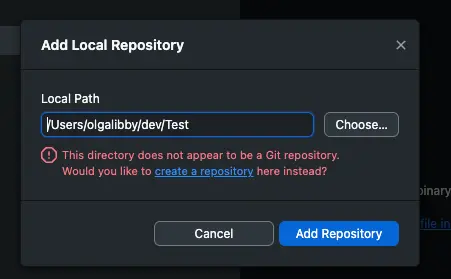
- Open GitHub Desktop. Go to File > Add Local Repository.
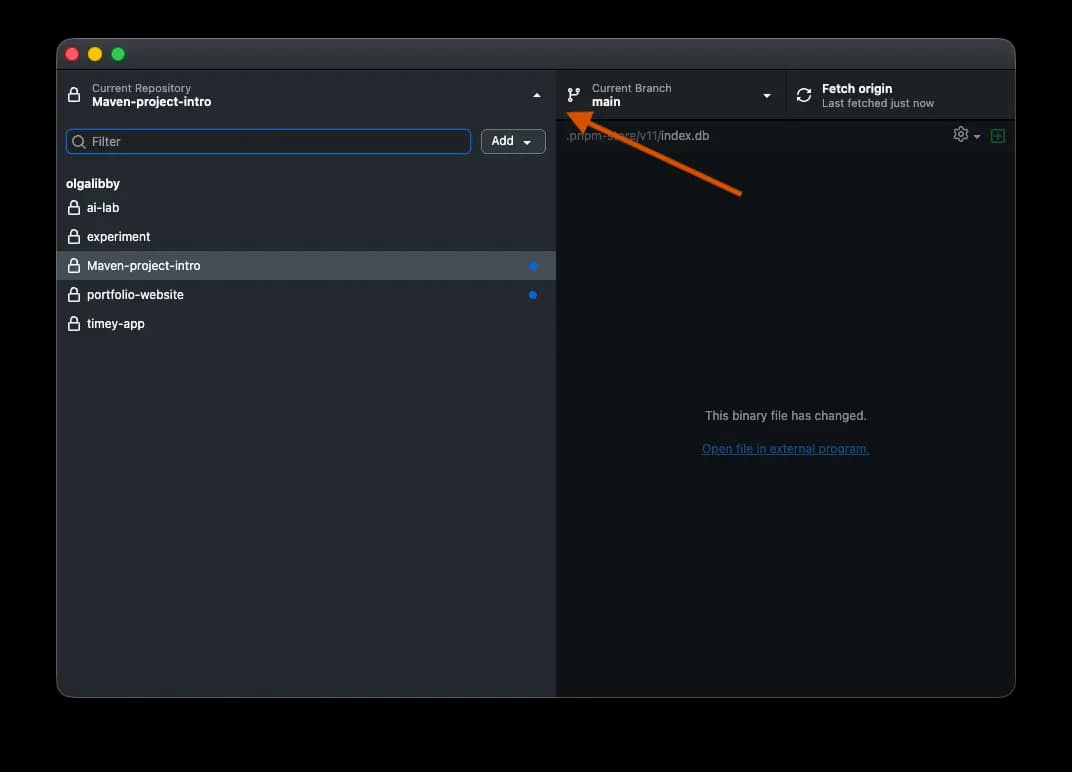
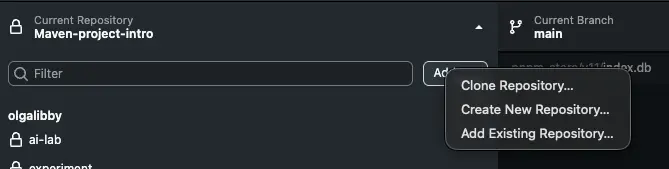
- Select your Project 1 folder. In the dialog that appears, click Choose... and navigate to your Dev folder. Select the Project 1 folder inside it, then click Open.
- Create the repository. GitHub Desktop will detect that this folder isn't yet a Git repository and show a message saying "This directory does not appear to be a Git repository. Would you like to create a repository here instead?" Click the create a repository link.
- Review the "Create a New Repository" screen.
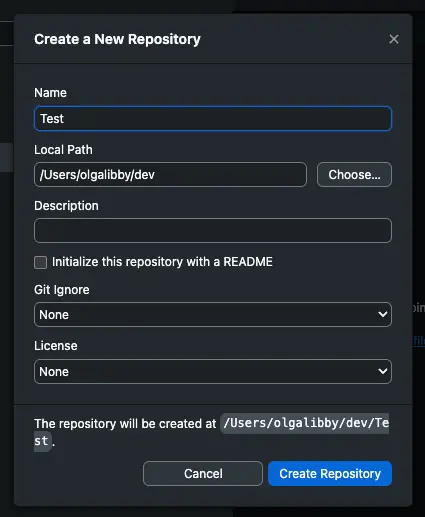
- The Name field should default to "Project 1". You can change it if you like.
- The Local Path field should show the path to your Dev folder (not your home directory). This is important — GitHub Desktop will create the repository inside your existing Project 1 folder, so the Local Path should point to the parent folder (Dev), with the name field completing the full path to Project 1.
- Leave the other settings (Description, Git Ignore, License) as they are for now.
- Click "Create Repository". This initializes Git inside your Project 1 folder. You'll now see your project files listed as changes on the left side.
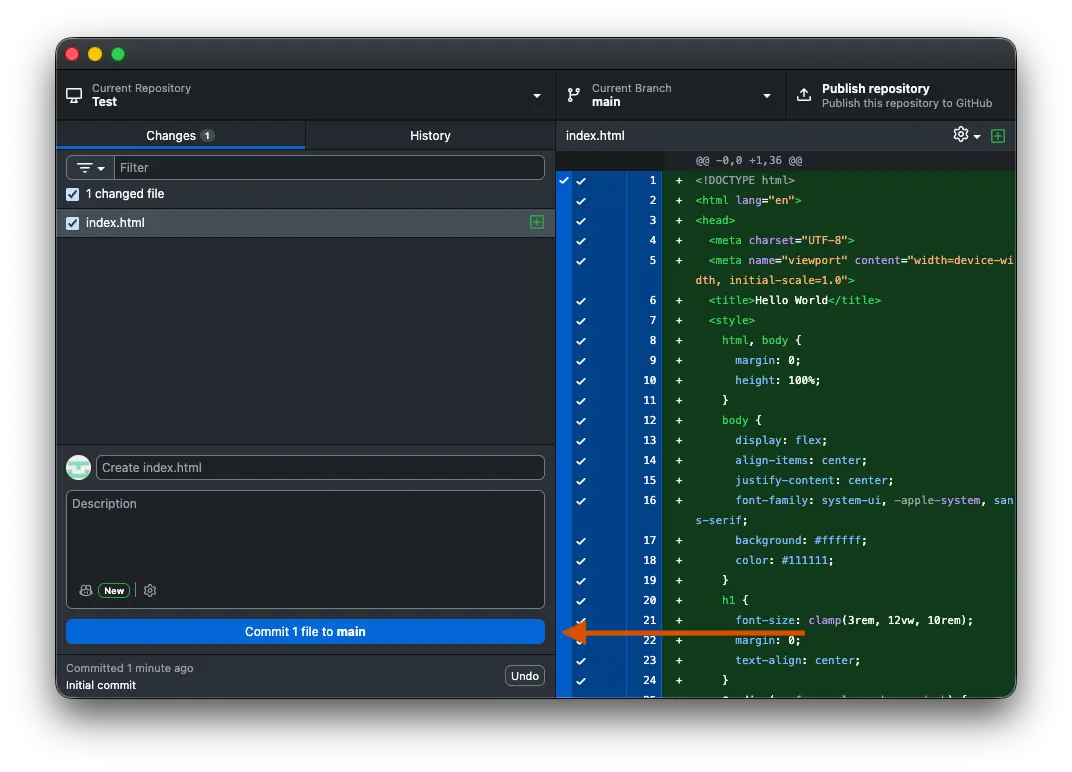
- Make your first commit. In the bottom-left corner of GitHub Desktop, type a summary like "Initial commit" in the Summary field. Then click the Commit to main button.
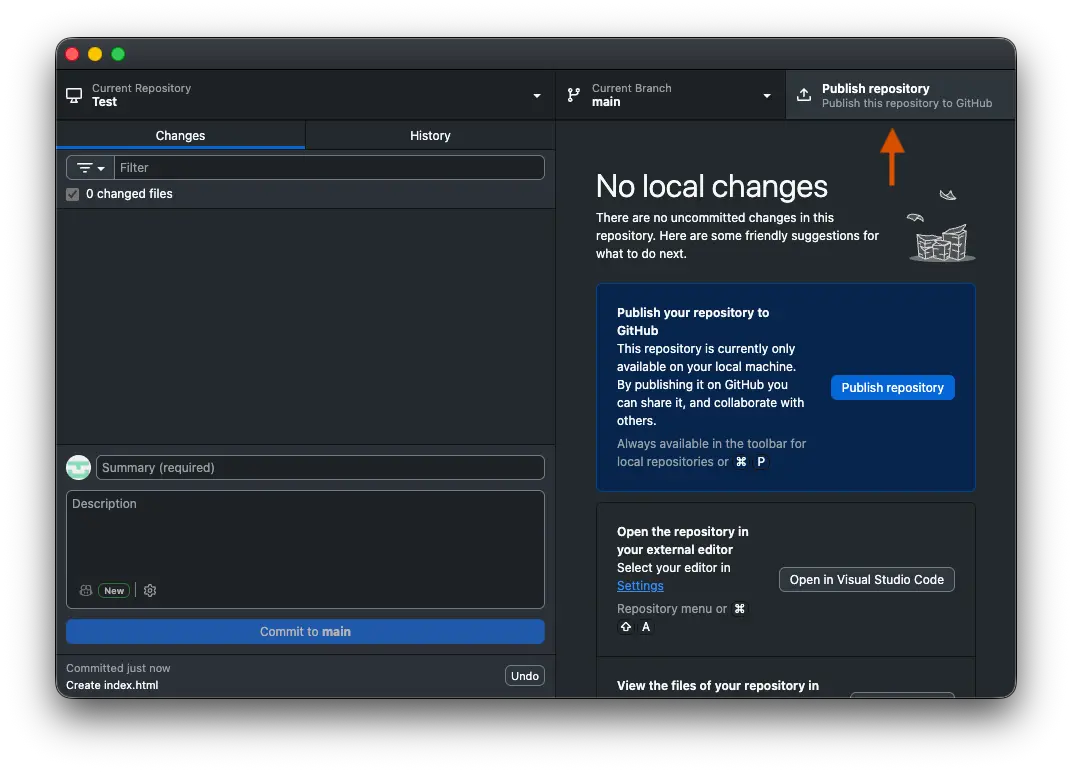
- Publish the repository. Click the Publish repository button in the top bar (or go to Repository > Publish repository).
- Configure the publish settings. A window will pop up:
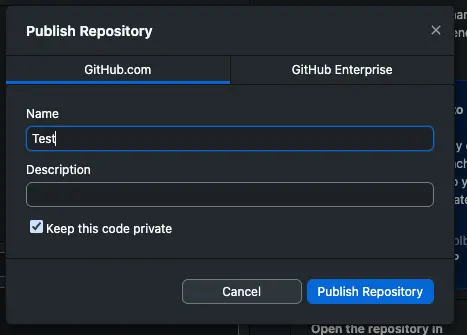
- Keep the default name ("Project 1") or change it if you prefer.
- Choose whether you want the code public or private. For a Vercel hobby account, either works fine. Private is a safe default if you're unsure.
- Leave "Keep this code private" unchecked if you want it public, or checked if you want it private.
- Click Publish repository.
Step 3: Import Your Project into Vercel
Now that your code is on GitHub, Vercel can access it.
- Log in to Vercel. Go to vercel.com and sign in. If it's your first time, sign up using your GitHub account for a smoother connection.
- Create a New Project. On your dashboard, click the Add New... button and select Project.
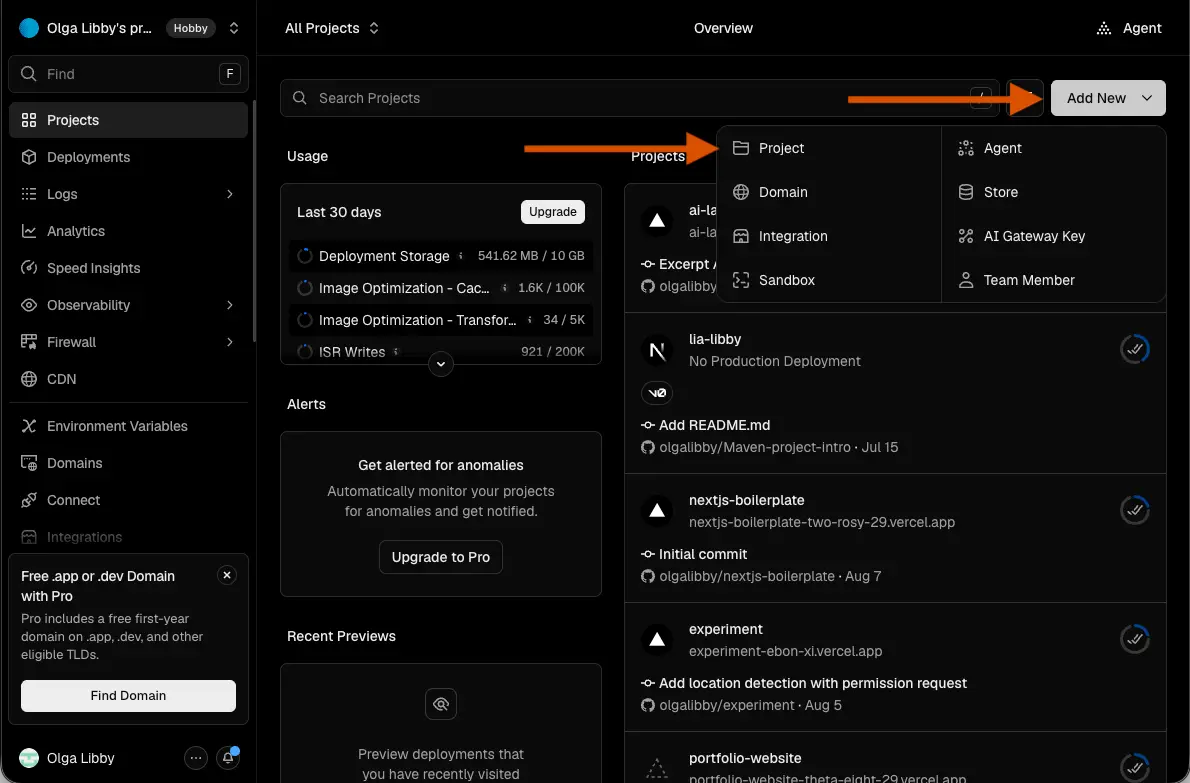
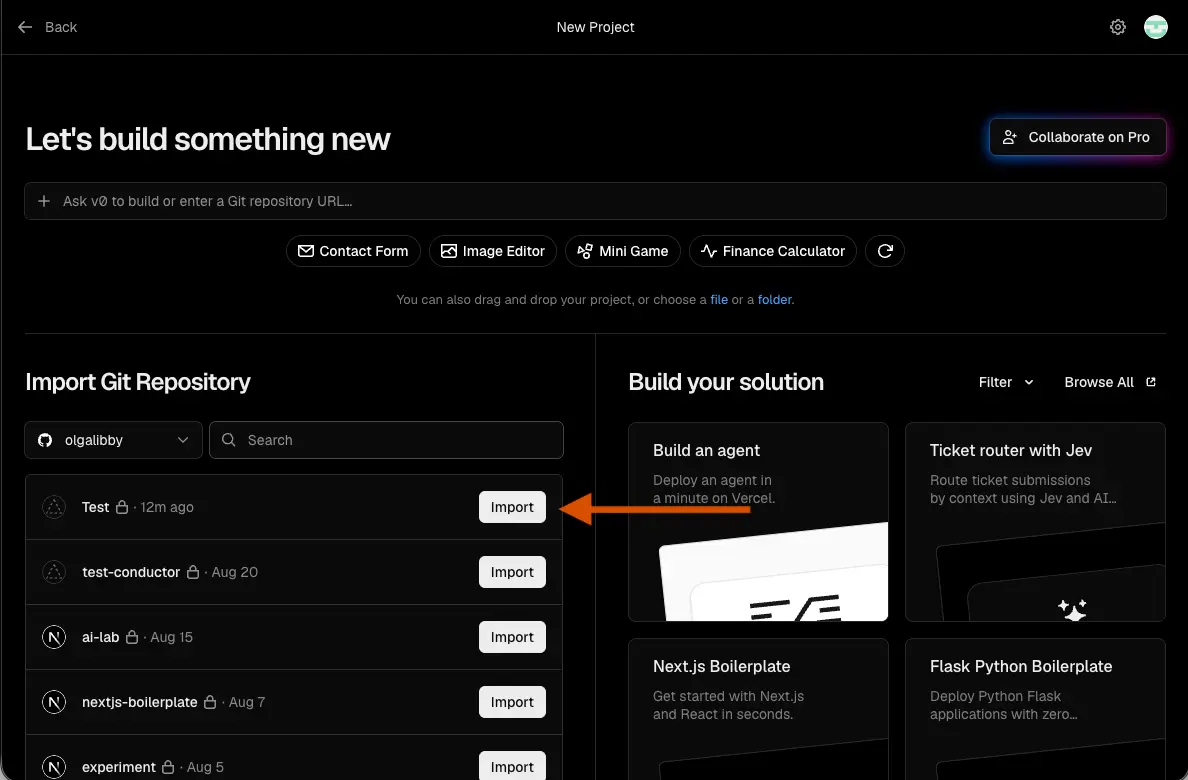
- Import your GitHub repository. You should see your Project 1 repository listed under "Import Git Repository". If you don't see it, you may need to click "Configure GitHub App" to grant Vercel access to your repositories. Once you see it, click the Import button next to it.
- Configure the project. Vercel will try to automatically detect your framework (like Next.js, Vite, etc.). In most cases, you don't need to change anything. The build commands and output directories are usually filled in correctly. If your project needs Environment Variables, you can add them here (or later in the project settings).
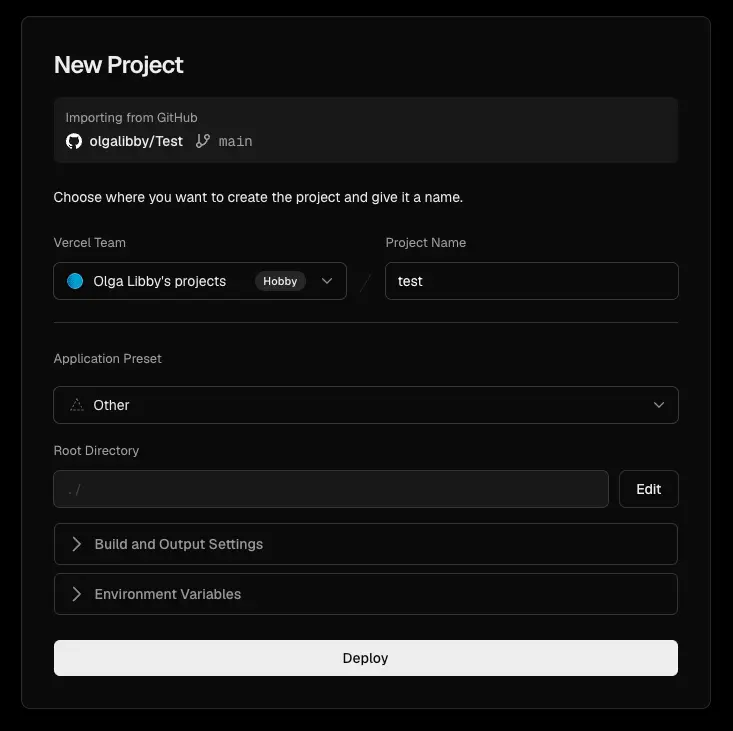
- Click Deploy. Vercel will now build and deploy your project. This usually takes a minute or two. Once it's done, you'll get a production URL where your app is live.
What Happens Next
After this initial setup, your workflow gets easier. Every time you use GitHub Desktop to commit and push changes to your main branch, Vercel will automatically deploy those updates to your live site. You'll also get preview URLs for any pull requests you make.
Initiating the Project from Vercel
Step 1: Choose and Deploy a Template on Vercel
- Go to Vercel and sign in to your account (use your GitHub account for easier integration).
- Navigate to Templates. You can either go to vercel.com/templates in your browser or click Add New... > Project from your dashboard and look for a "Templates" or "Clone Template" option.
- Browse and Select. Choose a boilerplate that fits your project (e.g., Next.js, Express, Vite, etc.). Vercel maintains a directory of starters from both Vercel and the community .
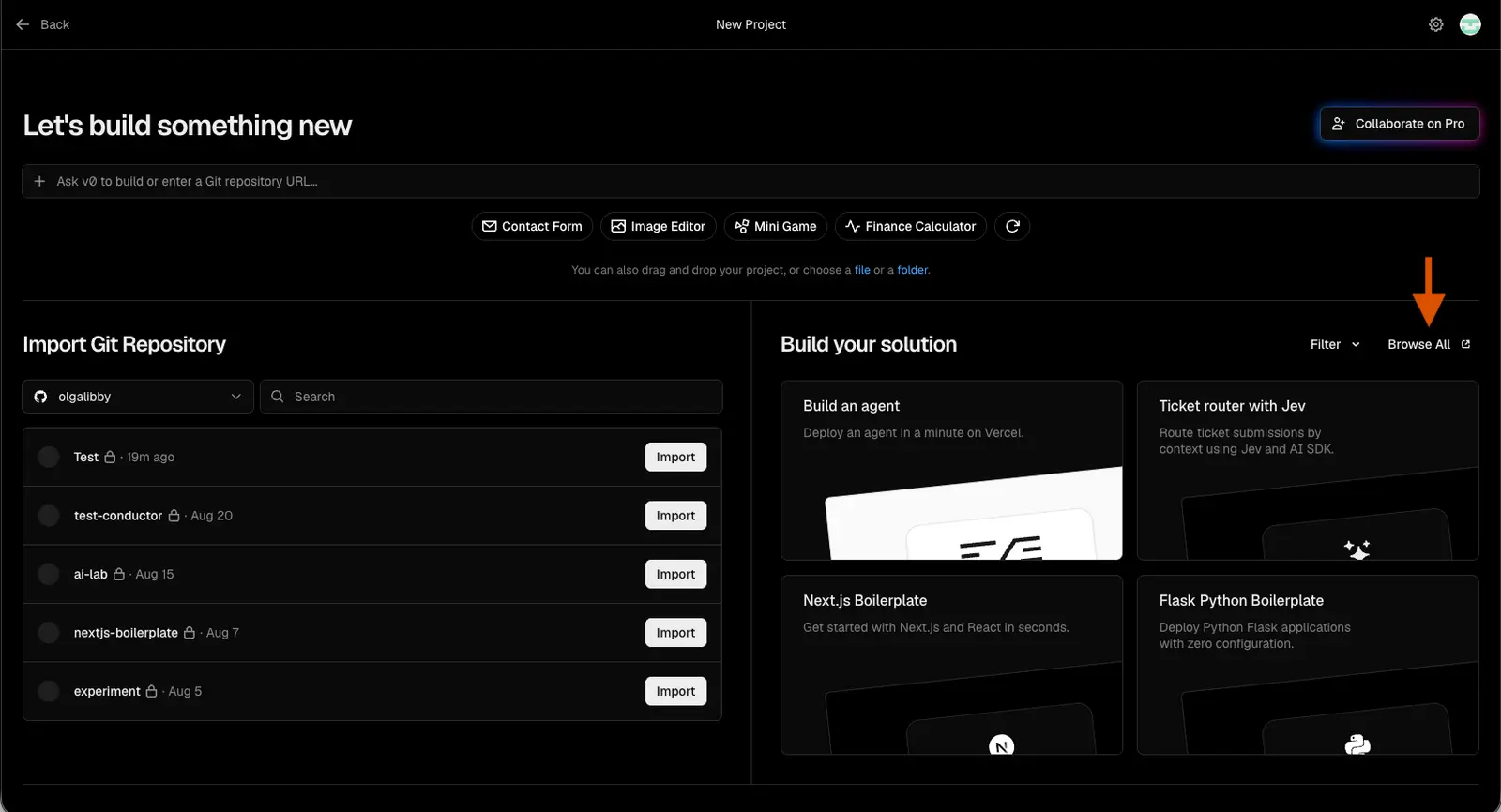
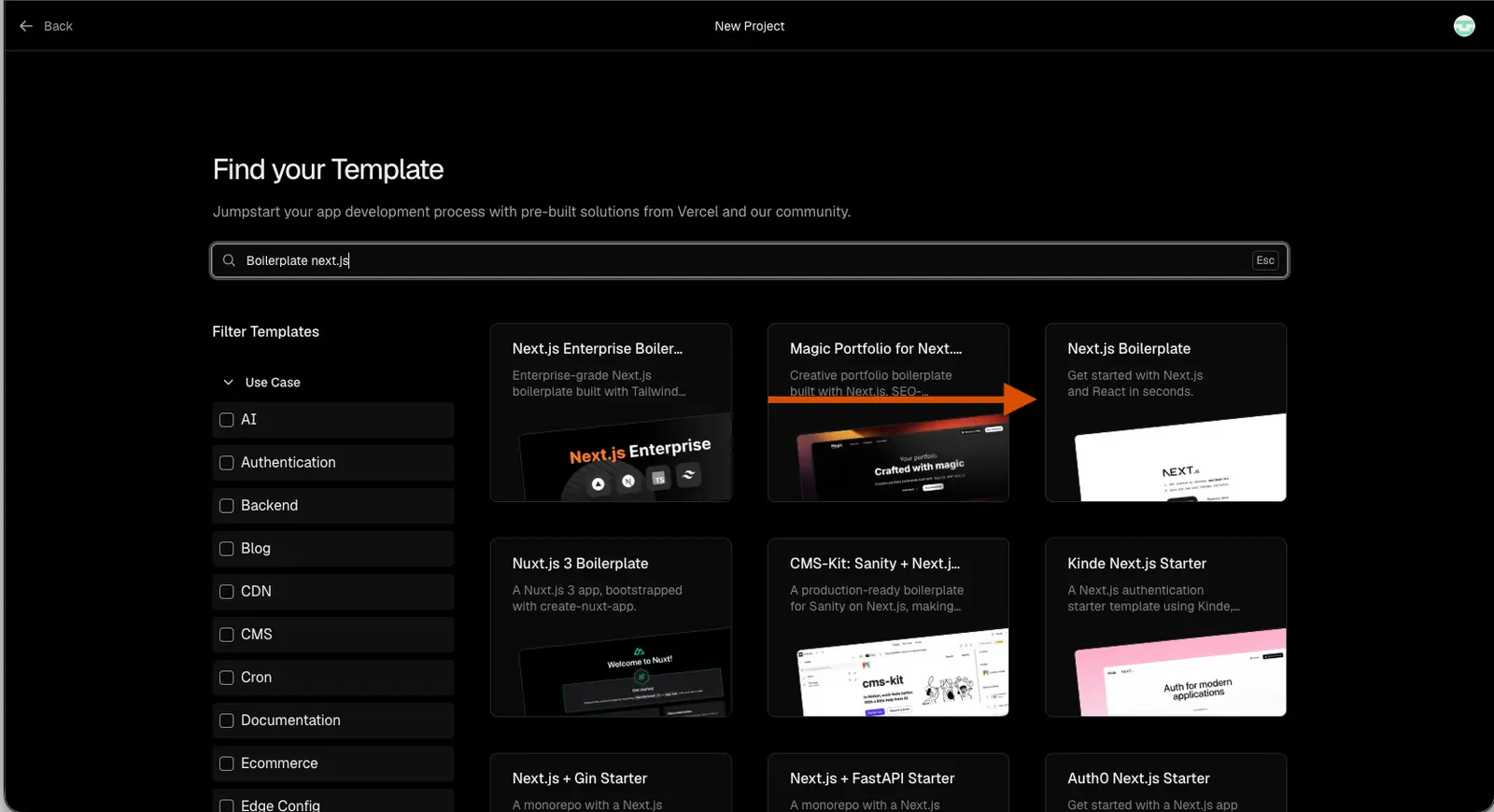
- Click Deploy. On the template's page, click the Deploy button.
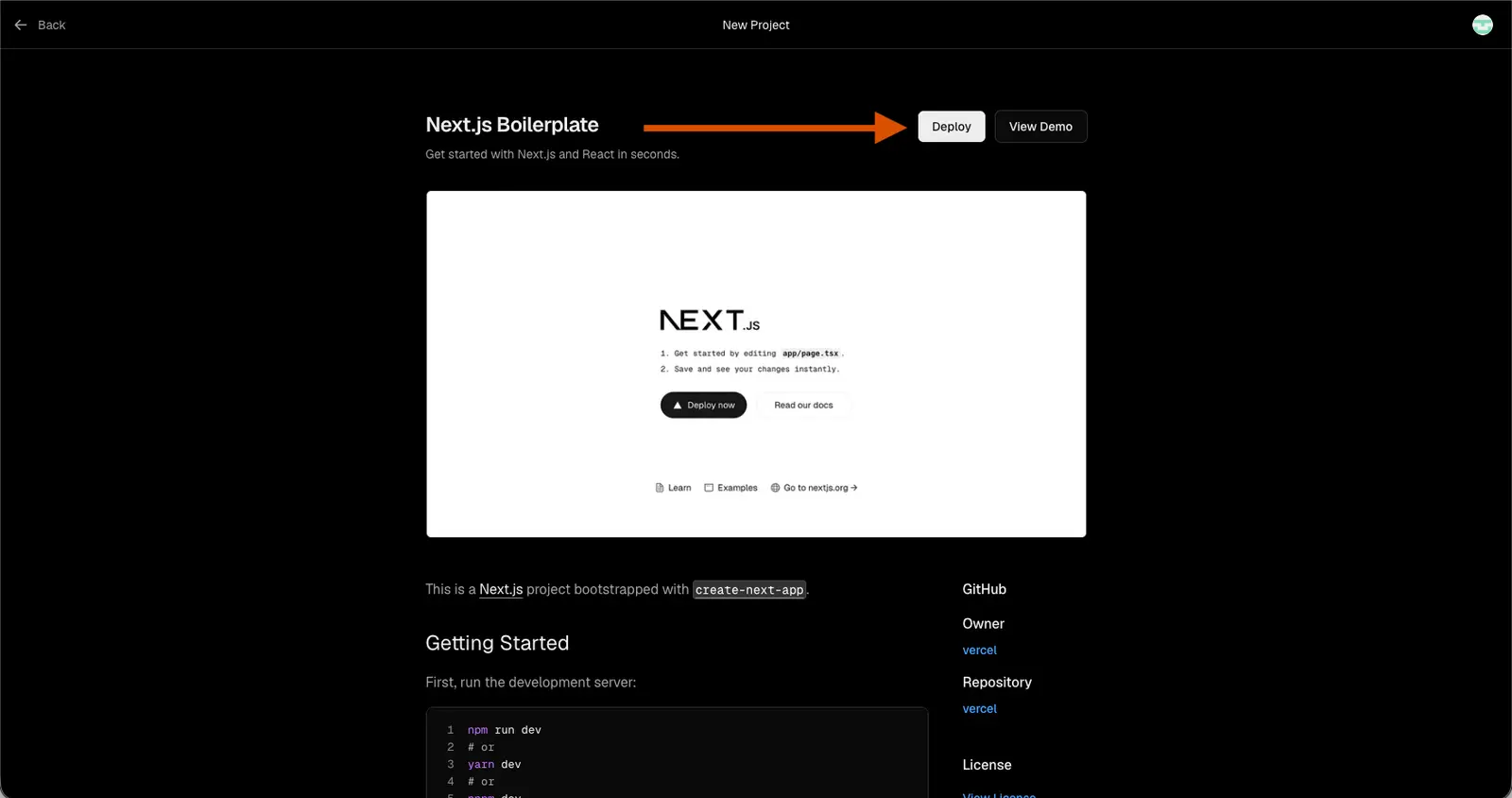
Step 2: Let Vercel Create Your Repository
When you click Deploy on a template, Vercel will ask you to connect a Git provider (GitHub, GitLab, or Bitbucket).
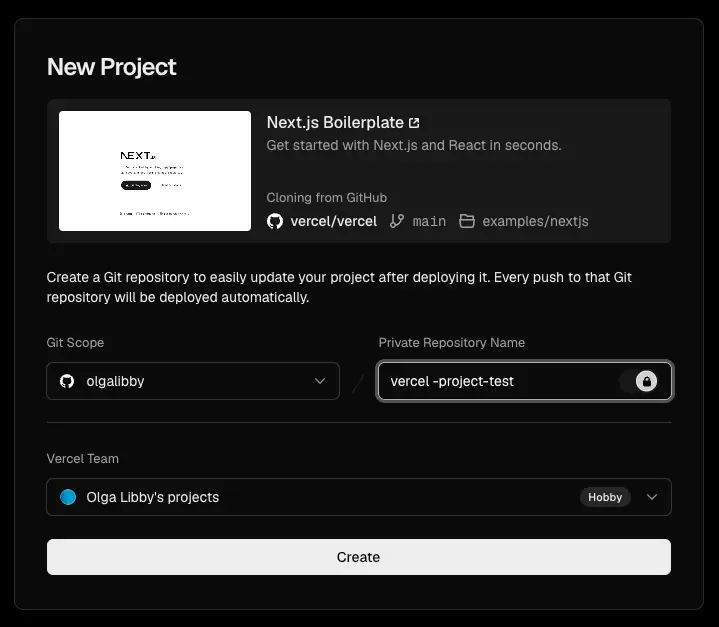
- Connect GitHub. Authorize Vercel to access your GitHub account if you haven't already.
- Name Your Repository. Vercel will prompt you to create a new repository. Give it a name (e.g.,
my-project-1). - Deploy. Vercel clones the template repository into your Git provider, creates a Vercel project, and deploys it . You'll receive a live production URL once it's done.
Step 3: Clone the Repository Locally with GitHub Desktop
Now that the repository exists on GitHub, you need it on your machine.
- Open GitHub Desktop.
- Clone the Repository. Go to File > Clone Repository. You should see the repository Vercel just created for you under the "GitHub.com" tab. Select it.
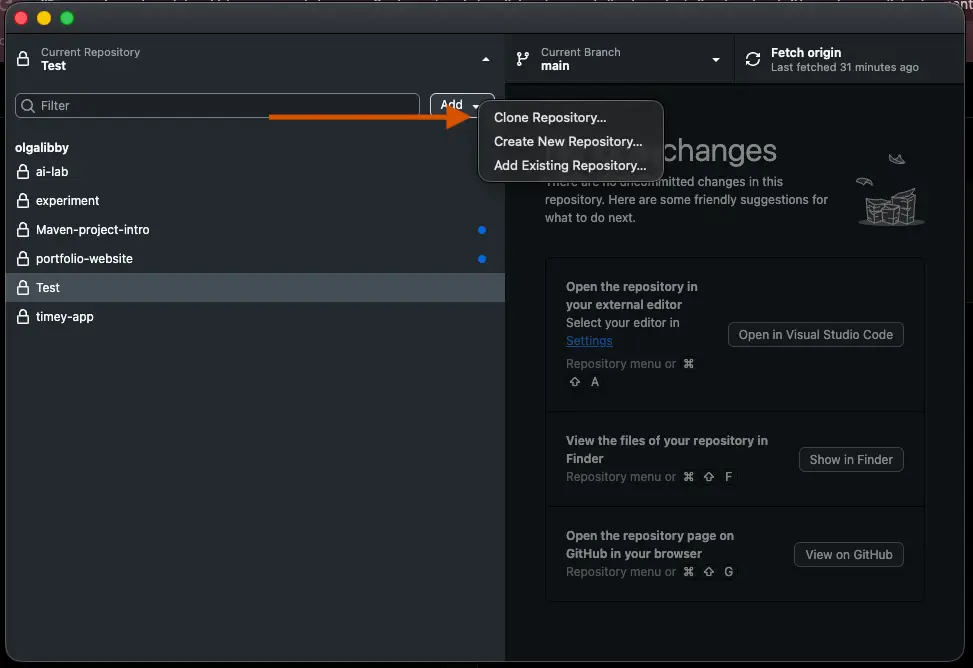
- Choose Local Path. Select a location for the local copy. By default, this is often
~/Documents/GitHub/. Click Clone.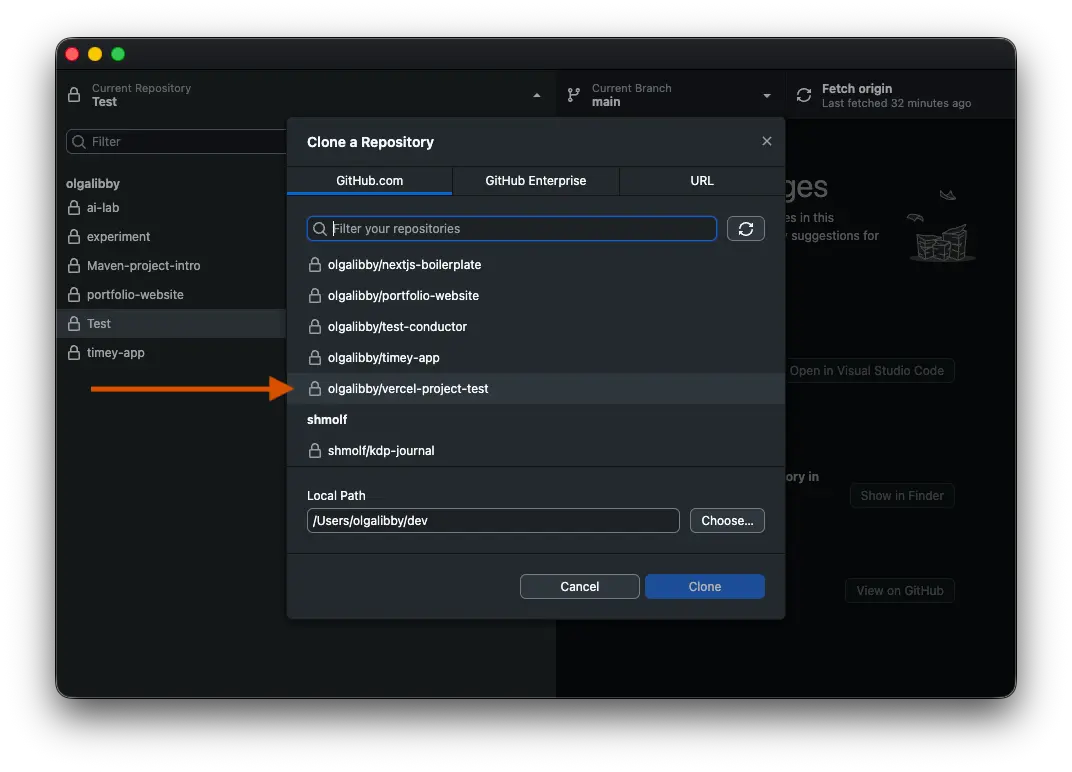
You now have the boilerplate code on your Mac, ready for you to edit and build upon.
Step 4: Make Changes and Push
- Edit Locally. Open the cloned folder in your code editor (like VS Code) and start building your project.
- Commit in GitHub Desktop. As you make changes, GitHub Desktop will track them. Write a summary and click Commit to main.
- Push. Click Push origin to send your changes back to GitHub.
Step 5: Automatic Deployment
Once your repository is connected to Vercel, every push to the main branch triggers an automatic production deployment . Vercel will build your updated code and publish it to your live URL. You don't need to do anything else in Vercel for updates.
Vercel and GitHub MCPs:
Installing the Vercel and GitHub MCPs lets your AI agent deploy, monitor, and manage your projects and repositories directly from chat, eliminating the need to switch between your terminal, browser, and GitHub tabs.
MCP (Model Context Protocol) is an open standard that lets AI applications connect to external tools and data sources . An MCP server is a live service that speaks this protocol, it tells the AI what tools are available and handles requests when the AI calls them . This is the technical machinery underneath everything; users typically don't interact with it directly.
Connectors are the bridge between your AI assistant and external services like GitHub or Vercel. They let the AI call tools, read data, and perform actions in those services directly from your chat window .
Plugins (preferred) are packaged bundles that may include connectors plus pre-built commands, workflow guidance, and specialized skills. A plugin teaches the AI how to use a service effectively, while a connector simply gives the AI access to it .
The practical benefit: You can say things like "List my recent Vercel deployments" or "Show open pull requests on GitHub" and the AI will execute those tasks without you switching to a browser or terminal.
Codex Installation Steps:
- Open Customize → Plugins tab
- Click Browse plugins to see available options
- Find the plugin you want and click Install
Codex Installation Steps:
- In the ChatGPT desktop app, select Codex in the switcher,
- Open the Plugins tab
- Find the plugin you want and click Install
Best Practice:
The consensus among power users is clear: keep your active toolset lean and task-specific.
- For MCP servers: The common advice is to only enable servers needed for the current task, then disable or remove them. Prefer project-scoped servers over global ones.
- For plugins: Every plugin adds its skills to the context. Tools like
optimizeorclaude-slimcan scan your history and suggest muting plugins you haven't used in weeks, which is especially valuable as your plugin library grows. - The bottom line: While the deferred-listing bug means you might not save the full theoretical amount, actively managing your connectors and plugins is still the most direct way to reduce unnecessary context bloat and preserve token budget for actual work.